

Get set up
Set up your account
Accept your invitation, finish setup and sign in to the coach app.
Coach accounts are set up by the Everstride team, so you can’t sign up on your own. Once your account is ready, you’ll get an email with a personal invitation link.
Accept your invitation
Section titled “Accept your invitation”-
Open the link in your invitation email.
The link works once and expires after 7 days. If it has expired, ask your Everstride contact for a new one.
-
Enter your name and choose a password.
Your password needs at least 12 characters. Type it twice to confirm it.
-
Accept the Terms and the Privacy Policy.
Tick the box, then continue.
Finish the three setup steps
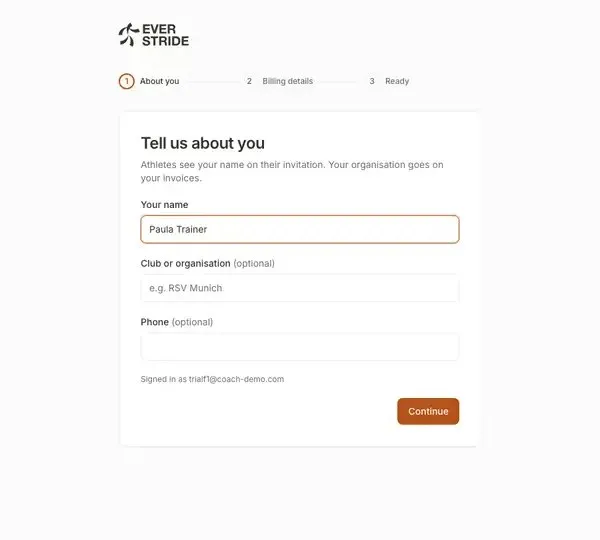
Section titled “Finish the three setup steps”After accepting your invitation, a short setup takes you through three steps.
-
About you.
Add your name, and if you like, your club or organisation and a phone number. Your athletes see your name on their invitation.
-
Billing details.
Add your address, country and VAT number if you have one. These appear on your invoices. You can choose Skip for now and add them later in Settings.
-
Ready.
Choose Create your first team, which takes you straight to the next guide.
Sign in after that
Section titled “Sign in after that”Go to app.everstride.fit and sign in with your email and password.
If you forget your password
Section titled “If you forget your password”- On the sign-in page, choose Forgot password?
- Enter your email address.
- Open the link in the email. It works for 30 minutes, so check your spam folder if you can’t see it.
- Choose a new password.
Take the product tour
Section titled “Take the product tour”Once athletes are on your dashboard, Everstride offers a short tour of about a minute. To replay it at any time, open your account menu at the bottom of the sidebar and choose Take the product tour.