

Get set up
Create a team
Create teams to organise your athletes in Everstride.
A team is a group of athletes you coach together. You could have one team for everyone, or separate ones such as “Road Squad” and “Juniors”.
Create your first team
Section titled “Create your first team”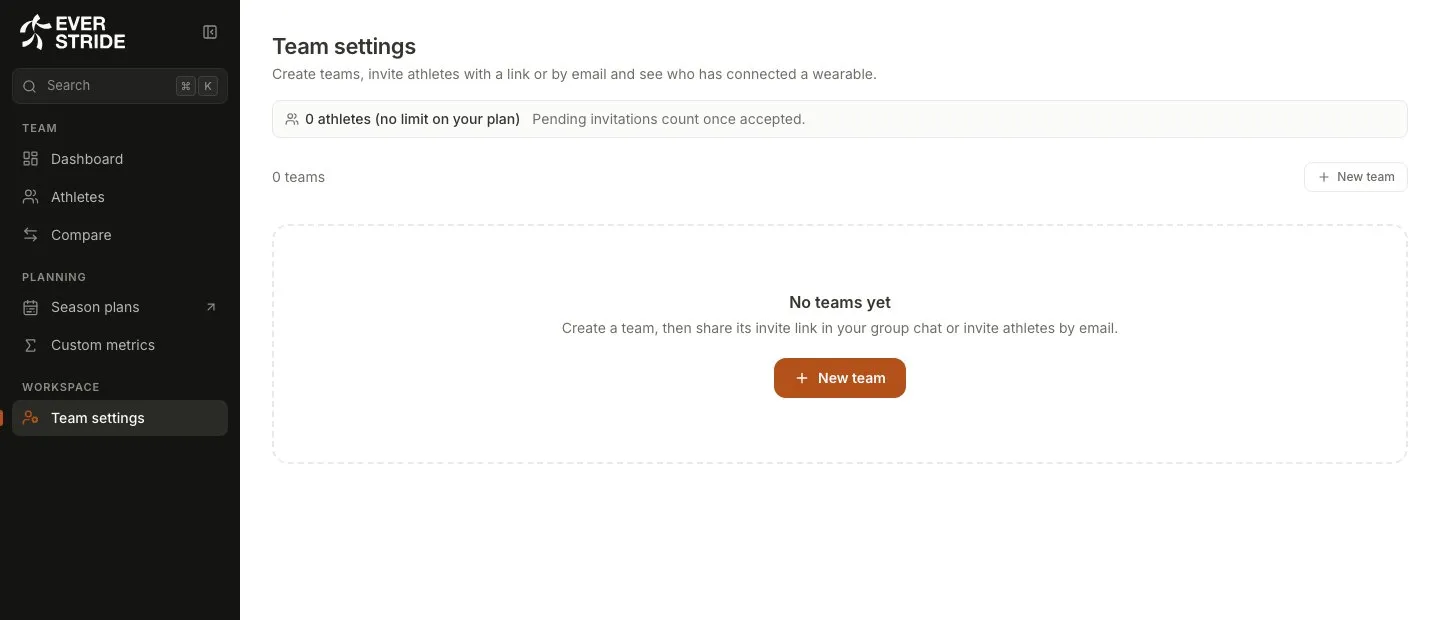
- In the sidebar, under Workspace, open Team settings.
- Choose New team.
- Type a name, then create the team.
The invitation form opens as soon as the team exists, so you can go straight on to inviting your athletes.
See who has joined and is syncing
Section titled “See who has joined and is syncing”Each team in Team settings lists its athletes with a real sync status:
| Status | What it means |
|---|---|
| Synced today | New data arrived today |
| Synced N days ago | The last data arrived that many days ago |
| No sync for N days | Data has stopped arriving, so it’s worth a check-in |
| No data yet | The athlete hasn’t connected a device, or nothing has arrived yet |
Pending invitations are listed as well, showing how many days are left before they expire.
Rename or delete a team
Section titled “Rename or delete a team”- To rename a team, edit its name in Team settings.
- To delete a team, choose the delete button on the team, then type
deleteto confirm.
Remove an athlete
Section titled “Remove an athlete”Choose Remove from team beside the athlete’s name. This ends their place on the team but doesn’t delete their account or their data.
Edit an athlete’s details
Section titled “Edit an athlete’s details”Athletes with their own account manage their own name and email, so only they can change these. You can still update their photo.
Your athlete limit
Section titled “Your athlete limit”Your plan includes a set number of athletes, shown at the top of Team settings, for example “7 of 10 athletes”. Pending invitations only count once they’re accepted.
When your plan is full, no new athlete can join by link, code or invitation. To add more places, see Plan and billing.